Bill of Materials (BOM)
By Naveen Soni on May 12, 2026
BeginnerDocumentation
Introduction
The Bill of Materials (BOM) Form is used to define and manage all materials, components, sub-assemblies, and operations required for manufacturing a product.
It helps control the flow of materials between production, inventory, purchasing, and planning departments.
It ensures that all materials are available in the right quantity at the right time during manufacturing.
It acts as the starting point for processes like:
- Work Order creation
- Production planning
- Material requirement planning
- Manufacturing execution
- Cost calculation
Fields in BOM Form
A. Production Item Section
1. Item to Manufacture: Defines the finished product that will be manufactured using this BOM.
2. Company: Identifies the legal entity within the ERP system.
Example:
Classic Signages Private Limited Jaipur

B. Cost Allocation / Process Loss Section
3. % Cost Allocation: Defines the percentage of total cost allocation.
Default Value:
100.0000
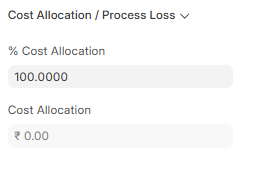
4. Cost Allocation: Represents additional manufacturing cost.
C. BOM Description Section
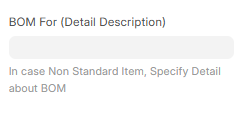
5. BOM For (Detail Description): Used to define detailed description of BOM in case of non-standard item.
D. BOM Settings Section
6. Is Phantom BOM: Indicates sub-assemblies are not manufactured separately and are directly consumed in production.
7. Is Active: Indicates whether the BOM is active.
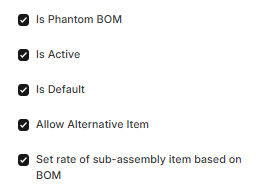
8. Is Default: Marks this BOM as default for the item.
9. Allow Alternative Item: Allows use of alternative raw materials.
10. Set Rate of Sub-Assembly Item Based on BOM: Calculates sub-assembly cost based on its BOM.
E. Components Section

Components (Items Table)
No.
Item Code: Raw material or component used in manufacturing.
Qty: Required quantity of material.
UOM: Unit of Measure.
- Rate (INR): Cost per unit of material.
- Amount (INR): Total cost of material.
Purpose:
- Defines all required raw materials
- Used for production planning
- Calculates total material cost
F. Secondary Items Section

Secondary Items
No.
Type: Type of secondary item.
Item Code: Code of secondary material.
Item Name: Name of secondary material.
UOM: Unit of Measure.
Qty: Required quantity.
Costing Section
1. Raw Material Cost (INR): Total cost of raw materials.
2. Total Cost (INR): Final total manufacturing cost.

More Info Tab
A. Item Information Section
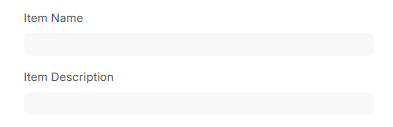
1. Item Name: Displays name of item to be manufactured.
2. Item Description: Displays detailed description of item.
.
C. Default Warehouse Settings
5. Default Source Warehouse: Warehouse from where raw materials are issued.
6. Default Target Warehouse: Warehouse where finished goods are stored.

D. Consumption Settings Section
7. Consume Components Based On: Defines how components are consumed during production.
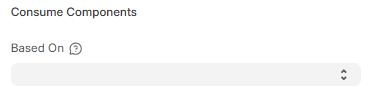
Available Options:
5.1 BOM: Components are consumed based on Bill of Materials structure.
Used For:
- Standard production process
- Follows predefined BOM quantities
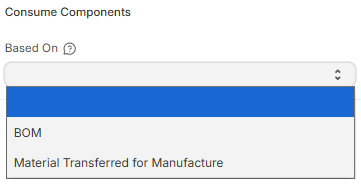
5.2 Material Transfer for Manufacturing: Components are consumed based on material transferred for production.
Used For:
- Actual issued material consumption
- Controlled production tracking
No comments yet. Login to start a new discussion Start a new discussion