Customer
By Vikas Jangid on December 6, 2025
BeginnerERP Documentation ::
Customer
Customer Form ::
The Customer Form is used to store and manage all customer-related information in ERPNext.
A Customer record is linked with many documents such as Sales Orders, Quotations, Delivery Notes, Invoices, Projects, and more. So it is very important that all fields are filled correctly.
1. First Section: Basic Information
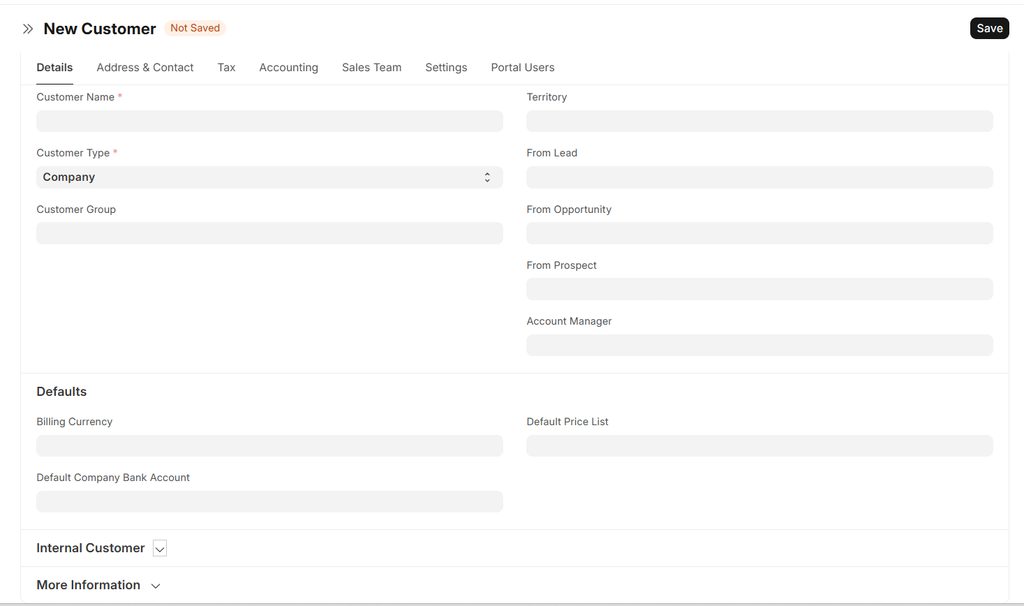
Salutation : Link, Only appeared if “Customer Type” not equal to “Company
Salutations like Mr., Ms., Dr., etc.
Customer Name
Full legal name of the customer
Customer Type : it has below mentioned options,
Individual,
Company
Partnership
Customer Group: Link,Used to categorize customers
Territory: Link, Region/area of the customer.
Gender: Link, Only appeared if “Customer Type” equal to “Individual”
From Lead / From Opportunity / From Prospect
Auto-link if the customer was created through Lead, Opportunity, or Prospect.
Account Manager
Employee responsible for handling this customer.
2. Defaults Section:

Billing Currency
Default currency in which the customer will be billed.
Default Company Bank Account
The system will pick this bank account by default in transactions.
Default Price List
Price list that will be used automatically for this customer.
3. Internal Customer Section
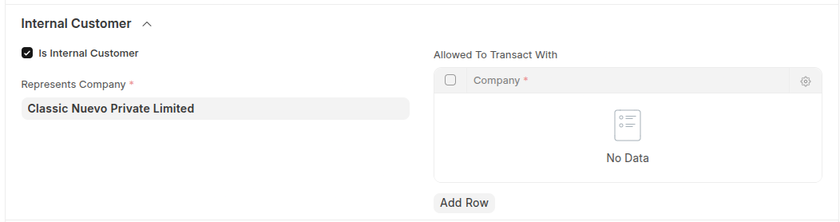
Is Internal Customer
Tick if the customer is created for internal company-to-company transactions.
Represents Company
Select the internal company that this customer represents.
Allowed to Transact With
List of companies allowed to transact with this customer.
4. More Information Section
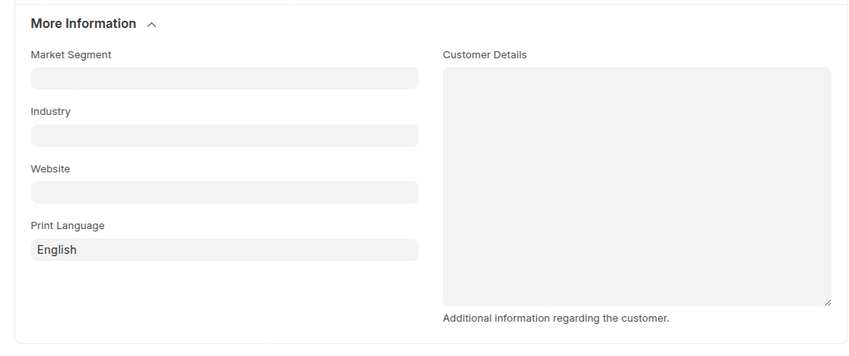
Market Segment
Link, Industry classification.
Industry
Specific industry type.
Website
Customer's website.
Print Language
Language for printed documents.
Customer Details
Additional notes or important information.
5. Address & Contact Section
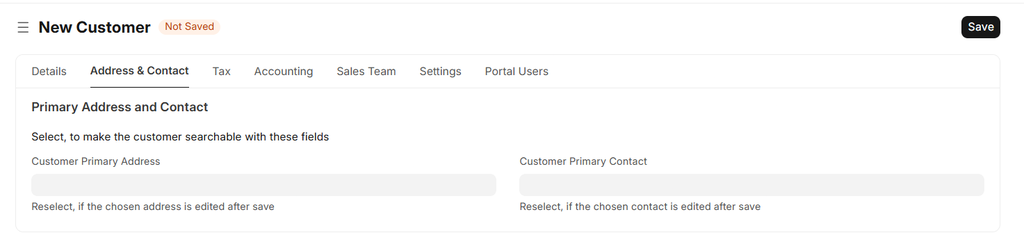
Customer Primary Address
Main address of the customer.
Primary Address (Text)
Readable address text., All Address related to customer will appear here
Customer Primary Contact
Main contact person.
Mobile No
Autofill, Mobile number of the primary contact.
Email ID
Autofill, Email of the primary contact.
Address and Contact sections update automatically when linked.
6. Tax Details Section
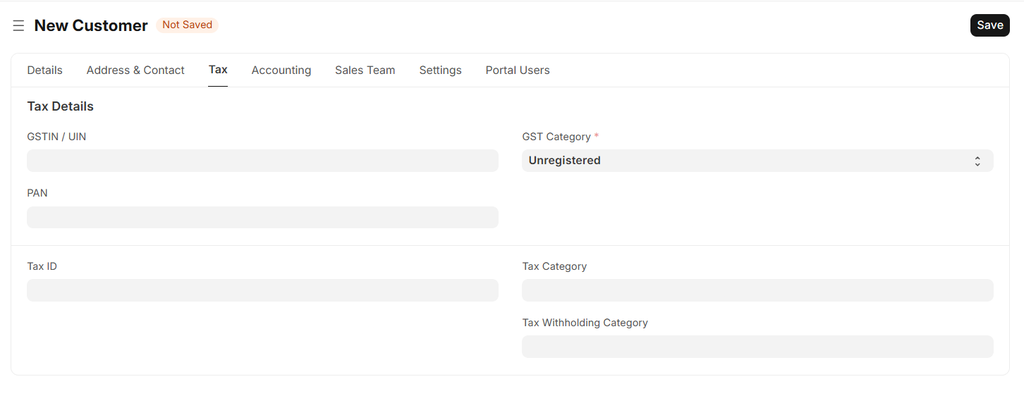
GSTIN / UIN
Customer GST number.
PAN
Permanent Account Number.
GST Category
Registered, Unregistered, Overseas, SEZ, etc.
Tax ID
Additional tax identifier if applicable.
Tax Category
Tax rules that apply to this customer.
Tax Withholding Category
TDS/TCS category.
7. Accounting Section
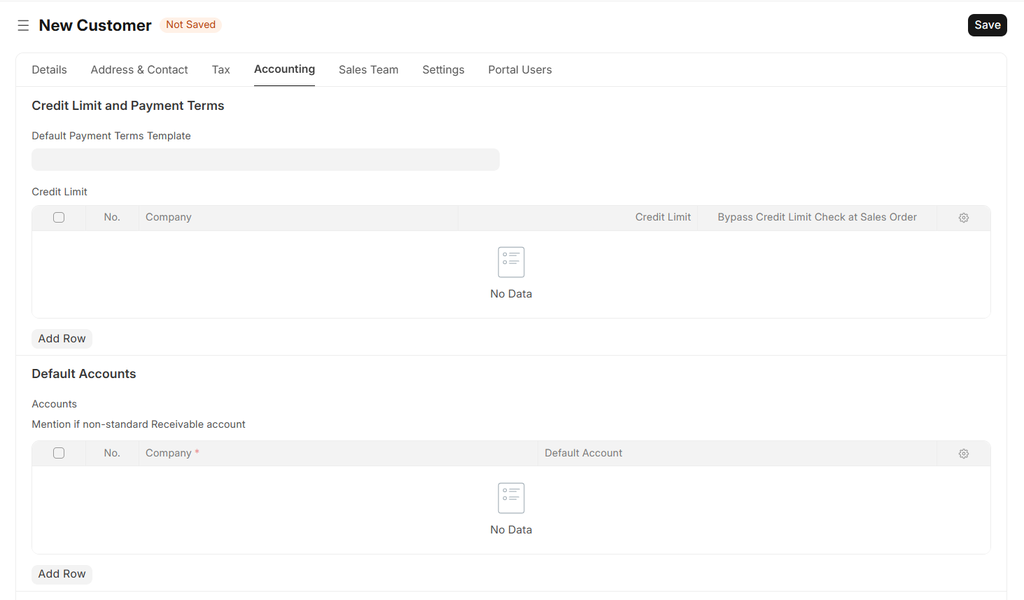
Default Payment Terms Template
Payment terms such as "Immediate", "30 Days", etc.
Credit Limit
Credit amount limit approved for this customer.
Accounts
Receivable accounts linked to this customer.
8. Sales Team Section
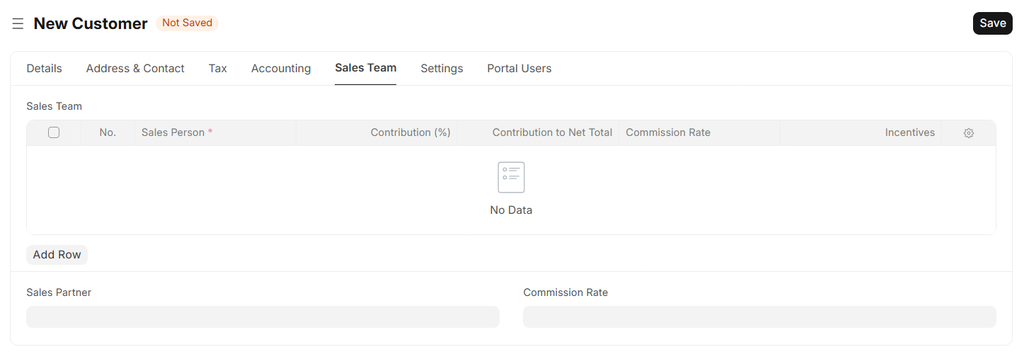
Sales Team
Sales users responsible for this customer.
Sales Partner
Business partner linked to this customer.
Commission Rate
Commission percentage for partner.
9. Settings Section

Allow Sales Invoice Creation Without Sales Order
If enabled, invoices can be created directly.
Allow Sales Invoice Creation Without Delivery Note
If enabled, invoice can be created without delivery.
Is Frozen
If checked, the customer cannot be used in any transaction.
Disabled
Marks customers as inactive.
10. Portal Users Section
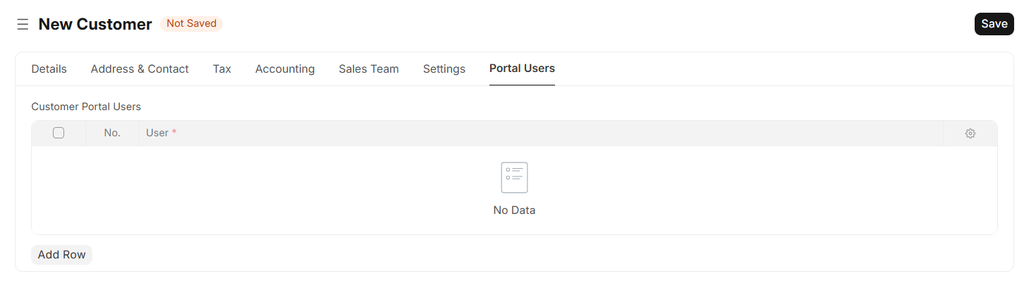
Customer Portal Users
Users who can log into the ERP portal to view customer-related details.
(Currently not used.)
No comments yet. Login to start a new discussion Start a new discussion