Lead
By Deepak Sain on February 24, 2026
BeginnerERP Documentation ::
Lead ::
In ERPNext, a Lead is a potential customer who has shown interest in your product or service but is not yet confirmed as a Customer .
A Lead is the first stage in the sales cycle, representing a person or company that has expressed interest in your products or services but has not yet been qualified as a customer .
👉 Simple meaning:
A Lead = Enquiry
When the lead becomes serious and qualified, it is converted into an Opportunity.
When the deal is won, it becomes a Customer.
1. First Tab: Details
1.1 Section :Details
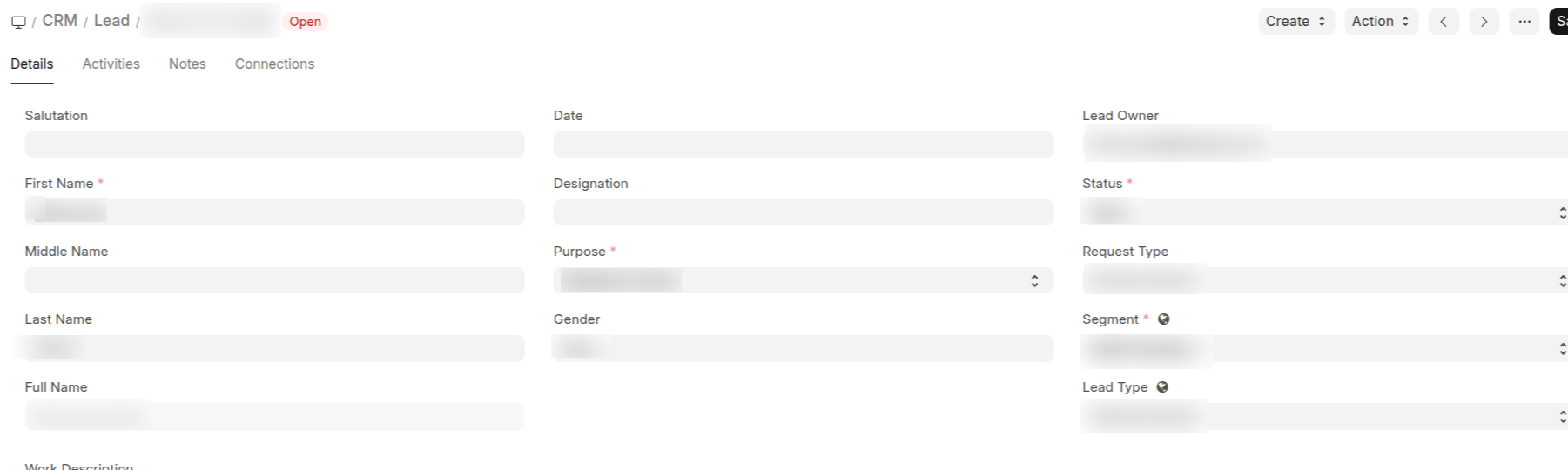
Salutation: Link Field, use for formal addressing (Mr., Ms., Dr., etc.)
First Name*:
Middle Name:
Last Name:
Full Name: Auto-generated field
Date: default today
Designation: Examples: CEO, Purchase Manager, Admin Head & IT Manager etc. Its initial name is Job Title in ERP.
Purpose: Select field, It has below mention options:
- Budgetary Quote
- Quote For Tender
- Selling
- Others
Gender:
Lead Owner: Link field, sales person user-id
Status: Select field, this controls the life stage of the lead. It has below mention options
- Open
- Follow Up
- Converted
- Quotation
- Close
- Open - Newly created and yet to be engaged.
- Follow Up - Follow up is happening with client
- Converted - Converted to a Customer or client.
- Quotation - To send a Quotation.
- Close - Marked as not to be contact.
Request Type: Select field, It has below mentioned options.
- Product Enquiry
- Request For Information
- Suggestion
- Other
Segment: Select field, It has below mentioned options.
- Signage Sector
- Oil Sector
- Solar Sector
- Digital Signage
- Road Safety
Lead Type: Select field, It has below mention options
- Client
- Channel Partner
- Consultant
- Government Sector
- Corporate Sector
- Private Limited
- Limited Company
- LLP/Proprietor Firm
1.2 Section : Work Description

Work Description: small text field,
Example: Requires 10 indoor 55-inch screens for showroom, installation included, budget 4-5 lac
1.3 Section: Contact Info

Website
Mobile No
Phone: Usually office landline.
Phone Extension
1.4 Section: Organization

Organization short form: Short name / Abbreviation of the company.
Organization Name: Full legal company name
No of employee: Select field, It has below mention options
- 1-10
- 11-50
- 51-200
- 201-500
- 501-1000+
- 1000+
Annual Revenue : Estimated yearly revenue of the company.
Industry: Link field, Business sector of the organization.
Market Segment : Link field, category of target market.
Territory: Geographical sales region assigned to the lead.
Fax : Company fax number (rarely used today but kept for formal business)
1.5 Section: Address & Contact

New Address: Button, used to create an address for lead. Below this button, after adding the address all addresses related to that particular lead will be visible here.
City:
State/Province:
Country:
New Contact: Button, used to create a contact for lead. Below this button, after adding the contact all contact related to that particular lead will be visible here.
1.6 Section: Analytics

Source: Link field, Specific lead origin. Where the lead Originated.
Examples: Website, Facebook, Exhibition, Cold Calling
Campaign: Link field, linked to marketing campaign Doctype.
not used in our organization
Medium : Link field, Marketing channel.
not used in our organization
Content : Specific content that generated the lead.
not used in our organization
1.7 Section: Qualification
not used in our organization

Qualification Status: Select field, It has below mention options
- Unqualified
- In Process
- Qualified
Qualified By: Link field, user-id
Qualified on: Date field
1.8 Section: Additional Information

Company: Link field, Name Of the company
Print Language: Default, English
Disabled: checkbox
Unsubscribed : checkbox
Blog Subscribe : checkbox
2. Second Tab: Activities
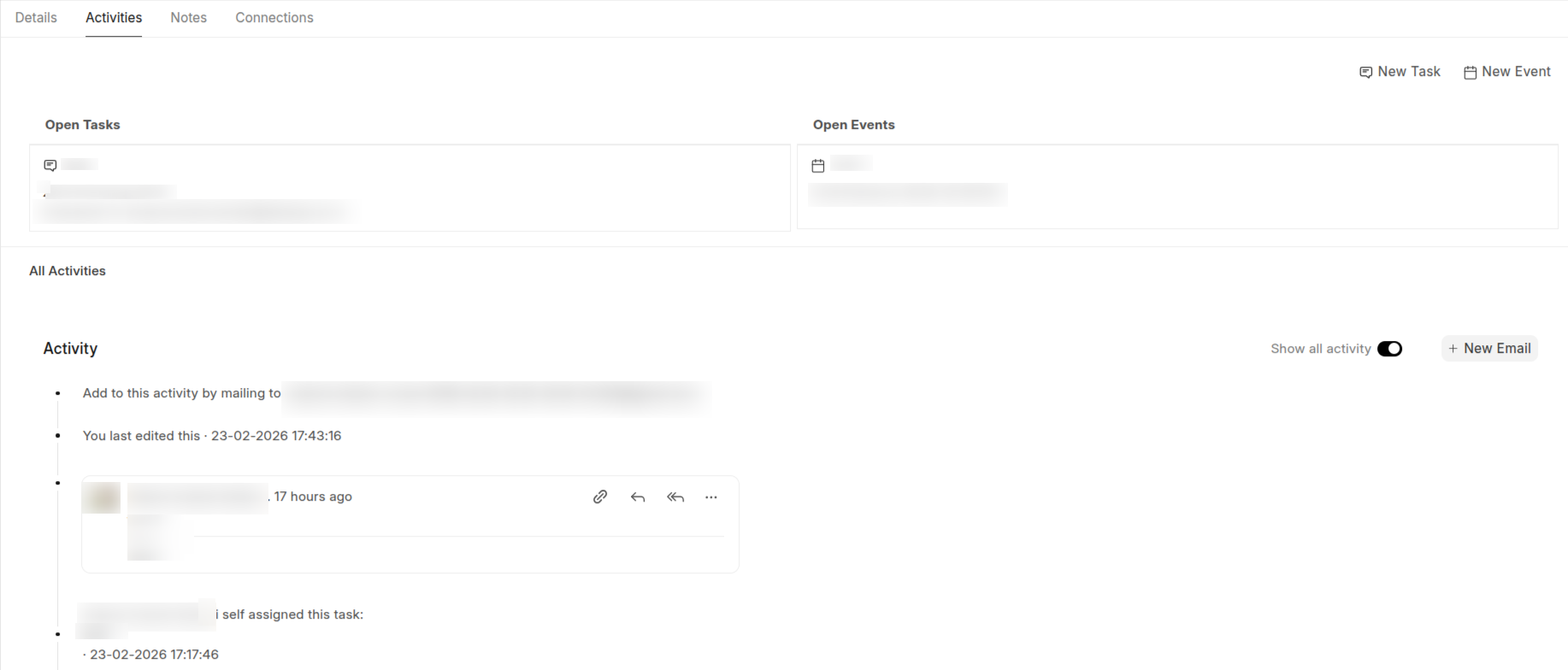
New Task : Button,When a user clicks on this button, a dialog box appears. When you save this, it will create a ToDo linked to this Lead. On the dialog box it will have below mentioned fields.
- Date
- Assigned To
- Description
- +Add Attachment(Select Attachment)
Used for:
- Follow-up call reminder
- Send quotation reminder
- Schedule demo reminder
New Event: Button,When a user clicks on this button, a dialog box appears. When you save this, it creates a Calendar Event for this Lead. On the dialog box it will have below mentioned fields.
- Category : Event, Meeting, Call, Sent/Received Email, Other .
- Date
- Assigned To
- Summary
- Description
- +Add Attachment
This event:
- Appears in Calendar
- Linked to this Lead
- Can include multiple participants
Open Tasks: Here you can see all ToDo records whose status is open and linked to this lead. If there were tasks, it would display:
- Task description
- Due date
- Allocated To user
Open Events: Here you can see all events records linked to this lead. It helps the sales team track future meetings. If event exists, it shows:
- Date & time
- Subject
3. Third Tab: Notes
In this section you can see all note records linked to this lead.

New Note : Button, when a user clicks on this button, a dialog box appears. When you save this, it will create a Note linked to this Lead. On the dialog box it will have below mentioned fields.
Note description
The Notes tab is used to store structured internal notes related to the Lead.
4. Forth Tab: Connections

The Connections tab shows all other documents in ERPNext that are linked to this Lead.
No comments yet. Login to start a new discussion Start a new discussion