Production Plan
By Komal Jangid on May 7, 2026
BeginnerProduction Plan
Documentation
Introduction
• The Production Plan Form is used to plan and manage manufacturing activities within an organization.
• In ERP systems, it helps convert demand into structured production workflows.
• It ensures that raw materials, resources, and finished goods are properly planned and scheduled.
• It acts as the starting point for:
- Work Order creation
- Raw material planning
- Manufacturing execution
- Inventory reservation
• It improves:
- Production efficiency
- Inventory visibility
- Coordination between sales, store, and manufacturing teams
Fields in Production Plan Form
Details Tab
A. Document Header Section

1. Naming Series: Defines the automatic naming convention for the Production Plan.
Helps in document tracking and identification.
2. Company: Specifies the company for which production is planned.
3. Posting Date: Indicates the date when the Production Plan is created.
By default, it takes the current date.
B. Demand Source Section
4. Get Items From (Mandatory)
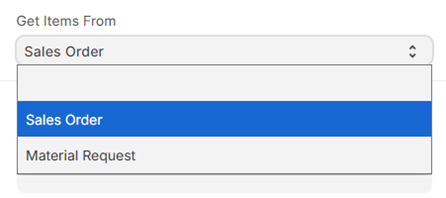
This is a critical control field that defines the source of production demand.
It directly affects:
• Filters displayed
• Data fetched
• Workflow behavior
• Integration with other modules
Available Options in Get Items From
4.1 Sales Order
Description: Used when production is planned based on customer demand.
System Behaviour
When selected:
• The system enables filters:
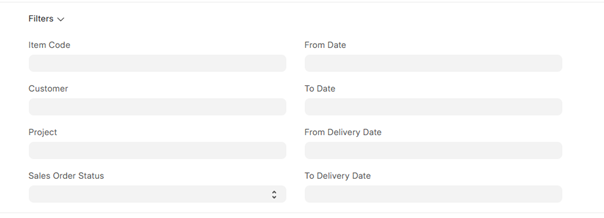
o Item Code
o Customer
o Project
o Sales Order Status
o From Date – To Date
o From Delivery Date – To Delivery Date
• A Sales Orders section appears:
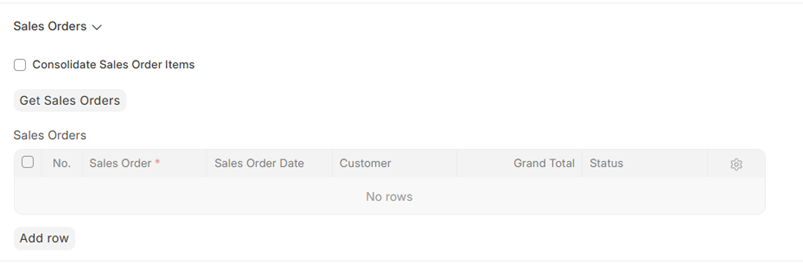
o User clicks “Get Sales Orders”
o System fetches relevant sales orders
• Sales Orders table includes:
o Sales Order Number
o Sales Order Date
o Customer
o Grand Total
o Status
• Option Available:
Consolidate Sales Order Items
o Merges similar items from multiple orders
o Reduces duplication
4.2 Material Request
Description: Used when production is planned based on internal demand.
System Behaviour
When selected:
• The system enables filters:
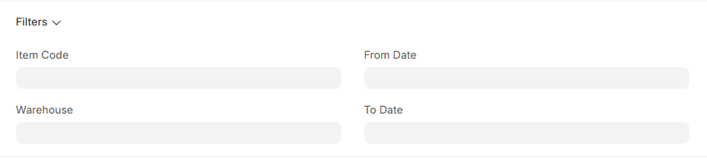
o Item Code
o Warehouse
o From Date – To Date
• A Material Request section appears:
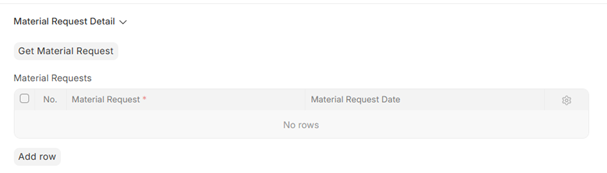
o User clicks “Get Material Request”
o System fetches requests
• Table includes:
o Material Request Number
o Material Request Date
C. Select Items to Manufacture
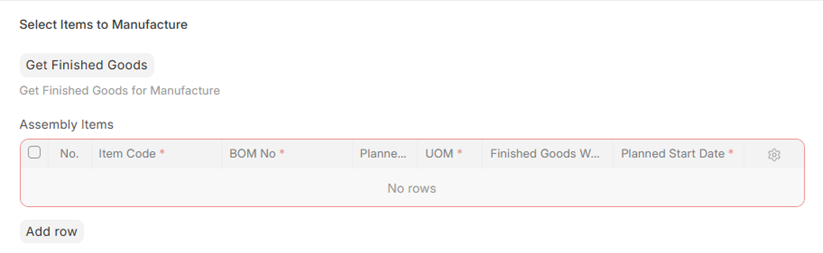
5. Get Finished Goods: Fetches items that need to be manufactured. This is visible only when get items from field is selected.
Assembly Items Section
This section contains items to be produced.
Fields Include:
• Item Code → Finished product
• BOM No → Defines components required
• Planned Qty → Quantity to manufacture
• UOM → Unit of Measure
• Finished Goods Warehouse → Where items will be stored
• Planned Start Date → Production start date
E. Sub-Assembly Items Section
6. Sub Assembly Warehouse
Defines warehouse for sub-assemblies.
Options Available
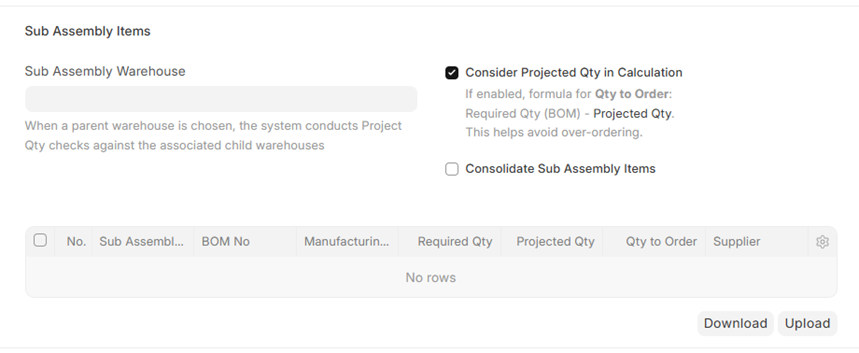
Consider Projected Qty in Calculation
• Uses formula:
Required Qty (BOM) – Projected Qty
• Helps avoid over-ordering
Consolidate Sub Assembly Items
• Combines similar sub-assembly items
• Improves planning efficiency
Get Sub Assembly Items
• Fetches sub-components automatically
Sub Assembly Table Fields
• Sub Assembly Item
• BOM No
• Manufacturing Type
• Required Qty
• Projected Qty
• Qty to Order
• Supplier
F. Raw Materials Section
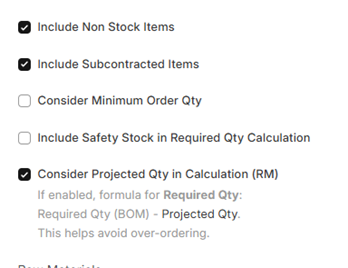
Options Available
• Include Non Stock Items
• Include Subcontracted Items
• Consider Minimum Order Qty
• Include Safety Stock in Required Qty Calculation
• Consider Projected Qty in Calculation (RM)
7. Get Items for Purchase / Transfer
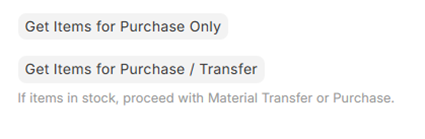
Buttons Available:
• Get Items for Purchase Only
• Get Items for Purchase / Transfer
Raw Materials Table Fields

• Item Code
• Warehouse
• Type
• Required Qty (BOM)
• Projected Qty
• Required Qty
• Quantity to Order
G. Other Details Section
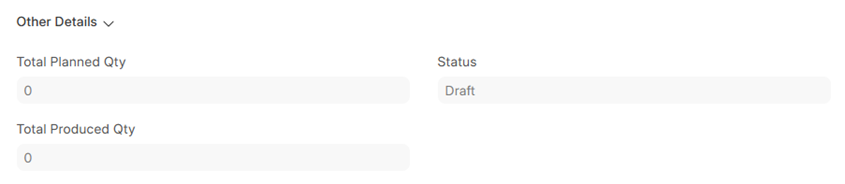
8. Total Planned Qty: Displays total quantity planned for production.
9. Total Produced Qty: Shows completed production quantity.
10. Status: Indicates document state (Draft, Submitted, etc.).
No comments yet. Login to start a new discussion Start a new discussion