Purchase Order
By Komal Jangid on May 8, 2026
BeginnerPurchase Order (PO) Documentation
Introduction
A Purchase Order (PO) is a formal document created by a company to purchase goods or services from a supplier.
It helps you:
- Order items clearly
- Track delivery
- Control costs
- Maintain proper records
Think of it as an official request + agreement between your company and the supplier.
A. Details Tab
1. Basic Information
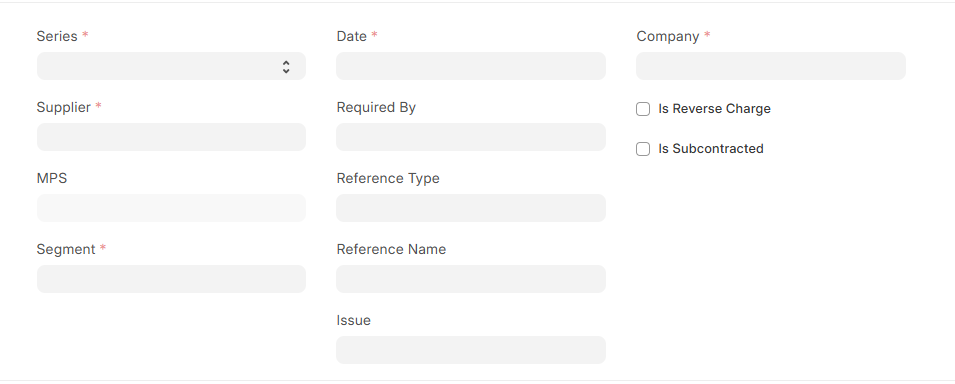
Series (Naming Series): This generates the Purchase Order number automatically.
Example: PO-2026-0001
Supplier: The vendor from whom you are purchasing items.
Example:
You are buying raw material from ABC Traders → select ABC Traders.
Date: The date when the Purchase Order is created.
Required By (Delivery Date): The date by which you expect the items to be delivered.
Company: Your company name for which the order is created.
2. Additional Fields
MPS (Master Production Schedule): It is used when your company plans production in advance. Simply It tells what items need to be produced and when.
Example:
- You are manufacturing sign boards and need raw material → linked via MPS.
Segment: Used to categorize the Purchase Order based on business type(Digital, Signage, Solar).
Reference Type & Reference Name: Used to link this PO with specific department.
Issue: Used to link any problem, complaint, or requirement.
Is Reverse Charge: Used for GST cases where buyer pays tax instead of supplier. Use only if your finance team tells you.
Is Subcontracted: Enable when you are sending raw material to a vendor for processing.
Example: You send metal sheets → vendor cuts and returns finished goods
Title: Short description of the order.
Example:
“Purchase of Steel Sheets for May Production”
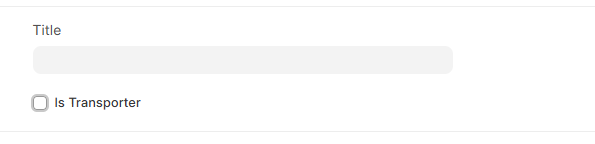
Is Transporter: Enable if supplier is a transport/logistics provider.
3. Accounting Dimensions
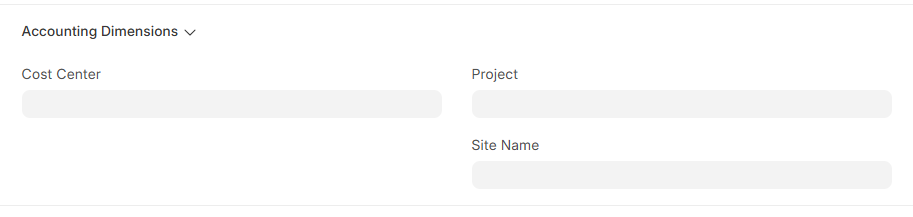
Cost Centre : Tracks which company is spending money
Project: Link the purchase to a specific project.
Site Name: Location where items will be used.
4. Currency & Price List
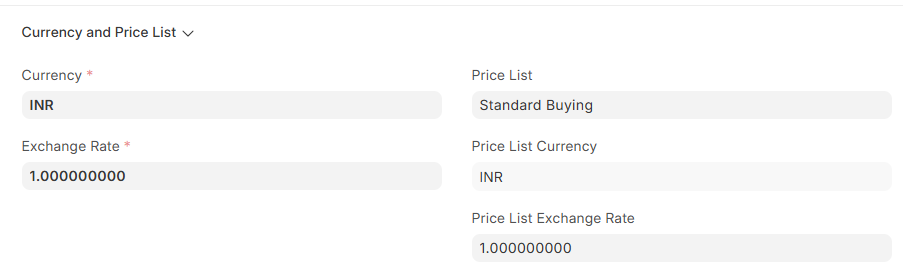
Currency: Currency used in transaction (e.g., INR).
Price List: Predefined list of item prices. Automatically fills item rates.
5. Inventory Settings

Scan Barcode: Use barcode scanner to quickly add items.
Set Target Warehouse: Default warehouse where items will be stored.
6. Items Table

Item Code: Name of item from Item Master.
Required By: Delivery date for each item.
Quantity: Number of units required. Example: 100 sheets
UOM (Unit of Measure): Unit of item.
Example:
- Nos (Numbers)
- Kg
Rate: Price per unit.
Amount: Automatically calculated by Quantity × Rate
Target Warehouse: Where this item will be stored.
Summary
- Total Quantity
- Total Amount
7. Taxes & Charges
This decides the final payable amount.
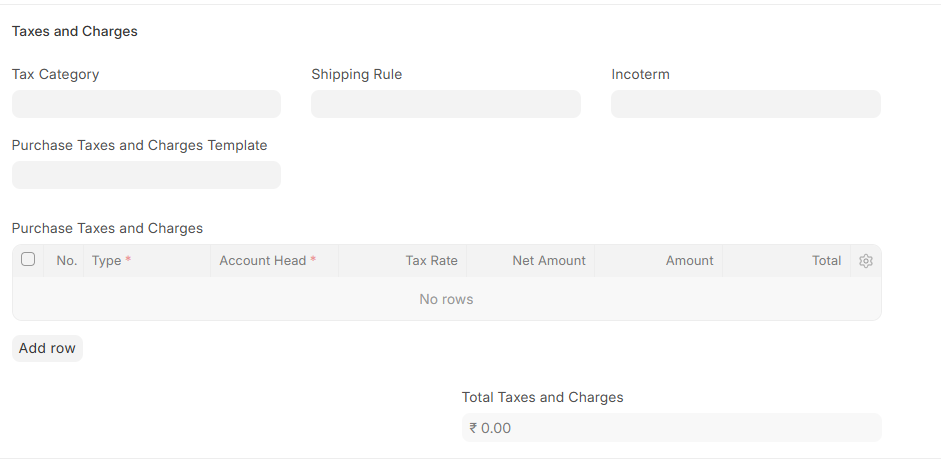
Tax Category: Type of tax applicable.
Purchase Taxes and Charges Template: Predefined GST setup.
Purchase Taxes and Charges Table: Autofilled from taxes and charges template. We can modify it.
Shipping Rule: Defines shipping cost.
Incoterm: International shipping terms.
Example:
- FOB (Free on Board)
- CIF (Cost + Insurance + Freight)
Totals: Autofetched
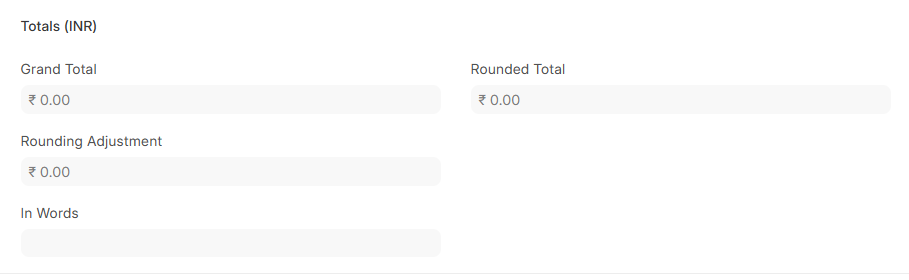
- Total Taxes and Charges (INR)
- Grand Total
- Rounding Adjustment
- Rounded Total
8. Additional Discounts: Apply extra discount if needed.
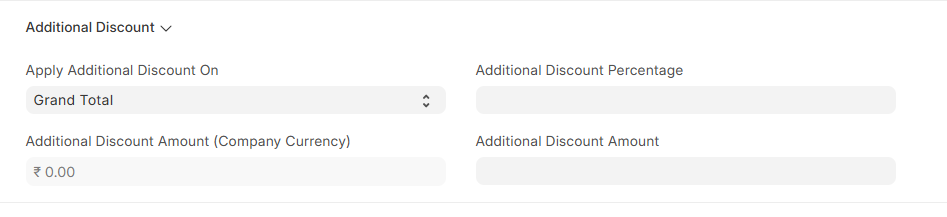
Example:
- 5% discount on total
- ₹500 flat discount
Note: Tax breakup and GST breakup are auto-calculated by the given information of items.
B. Address & Contact Tab
1. Supplier Details: Important for tax calculation.
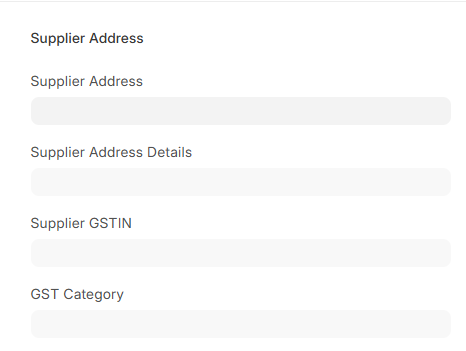
- Supplier Address
These fields are auto-fetched by Supplier Address.
- Supplier GSTIN (Tax ID)
- GST Category
- Supplier Contact
2. Contact Person: auto-fetched by Supplier Address
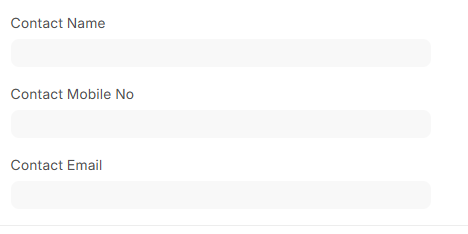
- Name
- Mobile Number
3. Shipping Details
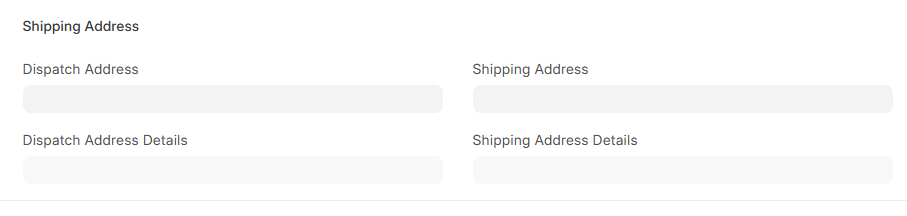
- Dispatch Address: From where goods are sent
- Shipping Address: Where goods will come
Must be correct to avoid delivery issues.
4. Billing Details
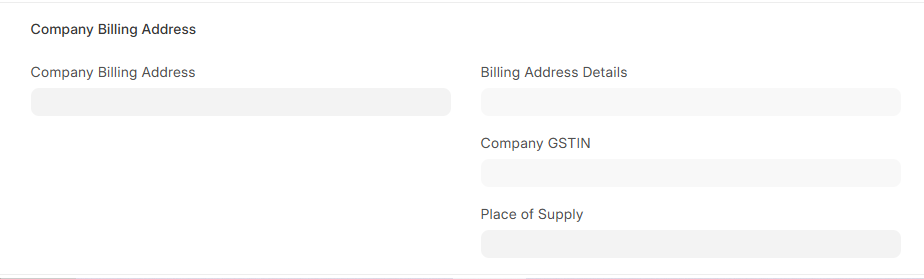
- Company billing address
- Company GSTIN
- Place of Supply
Important for GST calculation.
C. Terms Tab
1. Payment Terms : We can select a template and modify it.

- Defines how payment will be made.
Example:
- 50% Advance
- 50% After Delivery
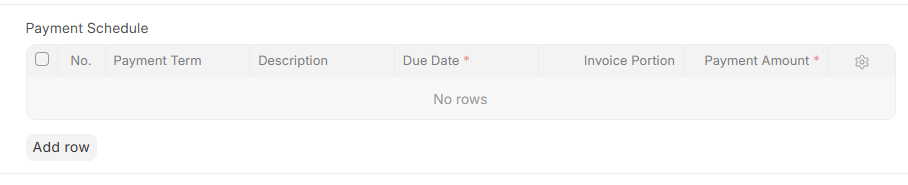
2. Payment Schedule
Breaks payment into parts.
3. Terms & Conditions
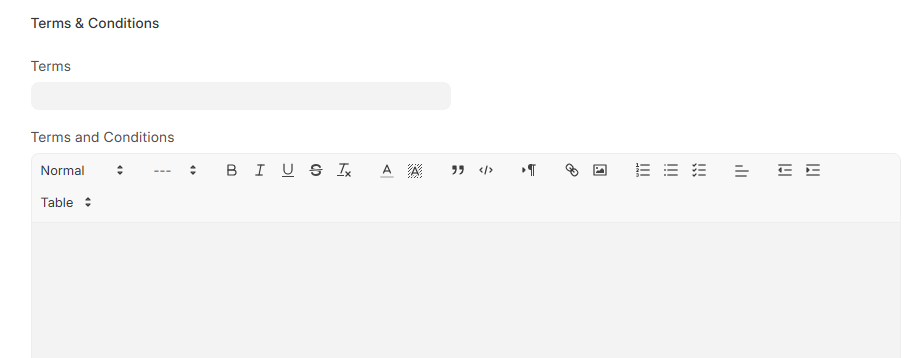
Write agreement details:
Include:
- Delivery timeline
- Payment rules
- Penalty clauses
- Warranty
D. More Info Tab
1. Status
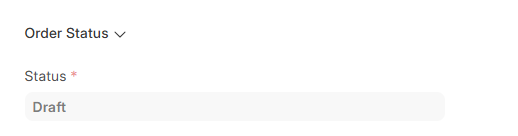
- Shows current stage:
- Draft
- Submitted
- Cancelled
2. Printing Settings
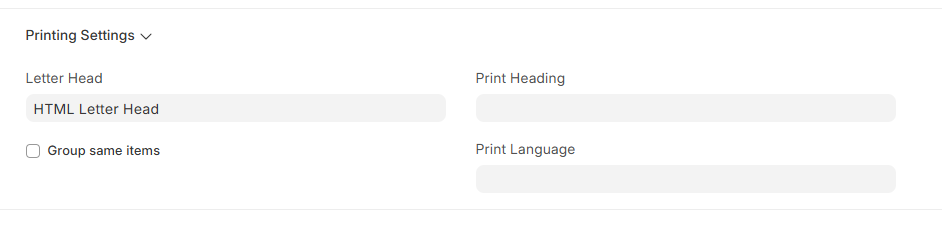
- Letterhead
- Print title
- Language
- Group same items
3. Auto Repeat
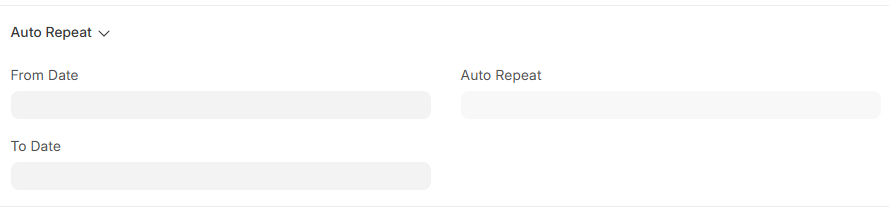
- Used for recurring orders.
Example:
- Monthly raw material order
4. Additional Info
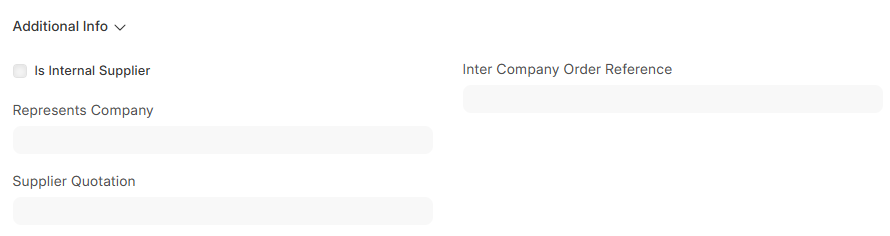
- Internal Supplier: For company-to-company transactions
- Inter Company Reference: Link internal orders
- Supplier Quotation: Link quotation
No comments yet. Login to start a new discussion Start a new discussion