Stock Reconciliation
By Naveen Soni on May 21, 2026
BeginnerDocumentation
Introduction:
The Stock Reconciliation form is used to match the stock numbers in your computer system with the actual items you have sitting in your warehouse.
Fields in Stock Reconciliation Form
A. Document Header Section
This section handles the basic details of your record.
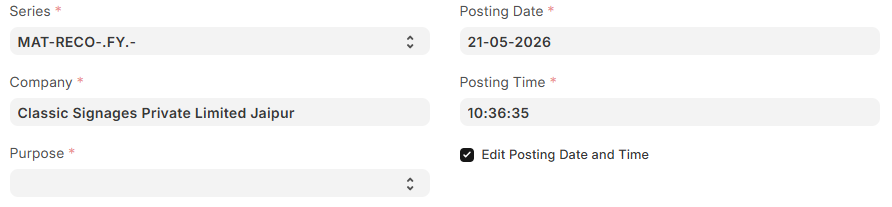
1. Series: Gives your form an automatic tracking number (like MAT-RECO-.FY.-).
2. Posting Date (Mandatory): The date you are making the stock update. It fills in today's date automatically.
3. Posting Time (Mandatory): The exact time you are updating the stock.
4. Edit Posting Date and Time: Check this box if you need permission to change the date or time (for example, if you are recording a count from yesterday).
5. Company (Mandatory): The name of your business (like Classic Signages Private Limited Jaipur).
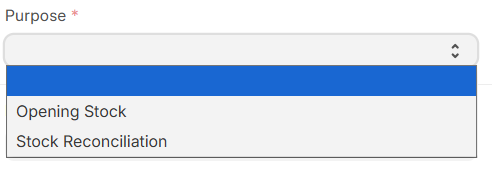
6. Purpose (Mandatory): Why are you filling out this form?
Available Options:
- Opening Stock: Pick this when you are typing your inventory into the system for the very first time.
- Stock Reconciliation: Pick this for regular, everyday stock checks to fix counting mistakes.
B. Warehouse & Scanning Setup
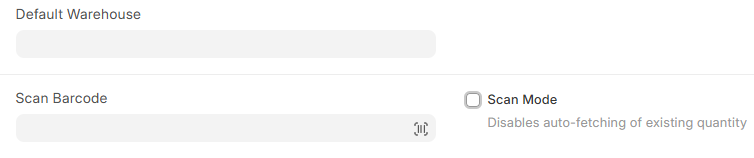
7. Default Warehouse: If you choose a warehouse here, the system will automatically copy it to all the items below. This saves you from typing it over and over.
8. Scan Barcode: Click here to use a barcode scanner to add items quickly.
9. Scan Mode: A special checkbox for counting.
System Behavior: When you check this box, the computer will hide how many items it thinks you have. This is great for "blind counting," where you scan every item you see on the shelf to get a 100% fresh count from zero.
C. Items Table (Core Section)
This is the main list where you enter your items and their real-world quantities. You can type them one by one, use the "Upload" button to add an Excel file, or click "Fetch Items from Warehouse" at the top.
Each row is one item:
- Item Code (Mandatory): The name or code of the item you are checking.
- Warehouse (Mandatory): The physical building or shelf where this item is kept.
- Quantity: The actual number of items you counted with your own eyes.
- Stock UOM: How the item is measured or counted (like Nos for numbers/pieces).
- Valuation Rate: The cost or value of one single item (like ₹ 0.00).

D. Accounting Adjustments
If you change your stock numbers, the total value of your inventory changes too. This section tracks that money.
10. Difference Account: The accounting folder where the system records the money you gained or lost because of this stock update.
11. Difference Amount: You don't type here. The system automatically calculates the total money difference between what the computer thought you had and what you actually have.

E. Accounting Dimensions
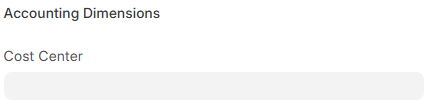
12. Cost Center: This links the money change to a specific department or project. It helps the business know exactly where costs are happening.
No comments yet. Login to start a new discussion Start a new discussion