Timesheet
By Komal Jangid on May 4, 2026
BeginnerTimesheet Form
Documentation
Introduction
The Timesheet Form is used to record and manage the working hours of employees within an organization.
In ERP systems, it helps track the time spent by employees on:
- Tasks
- Projects
- Activities
Fields in Timesheet Form
Details Tab
A. Document Header Section

1. Company
- Identifies the company under which the timesheet is created.
- Ensures proper organizational mapping.
2. Status
- Displays the current status of the timesheet.
Common Status Values:
- Draft → Initial stage
- Submitted → Finalized entry
B. Employee Details
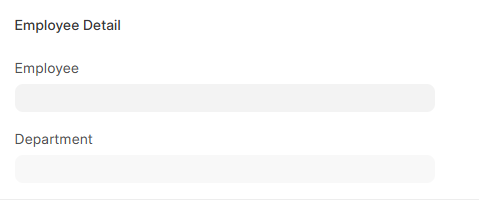
3. Employee (Mandatory)
- Selects the employee whose working hours are recorded.
4. Employee Name (Auto-fetched)
- Visible after selecting Employee.
- Cannot be edited manually.
5. Department
- Indicates the department of the employee.
C. Time Sheets Table (Core Section)
Each row represents a single activity or task.
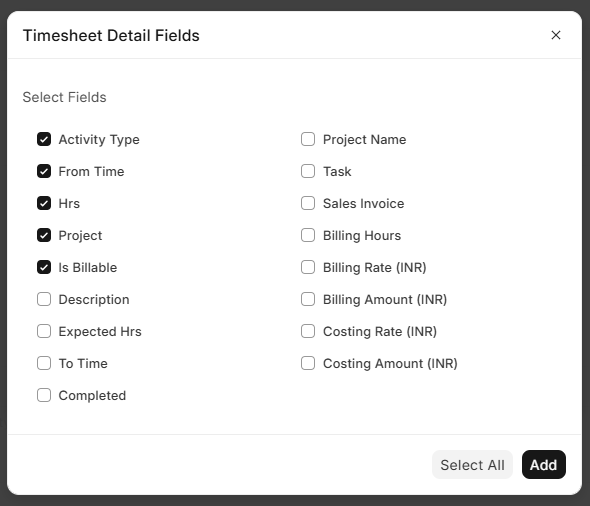
Users can customize columns using the gear icon, but below are the default (basic) fields followed by optional fields.
a. Default / Basic Table Fields

1. Activity Type
- Defines the type of work performed.
2. From Time
- Start time of the activity.
3. Hrs
- Total time spent on the activity.
- System-calculated field.
4. Project
- Links the activity to a specific project.
5. Is Billable
- Indicates whether the activity is billable.
These fields are visible by default in the table for quick time entry and tracking.
b. Additional Fields (Using “Add/Remove Columns”)
These fields can be enabled based on business requirements.
6. Description
- Brief explanation of the task performed.
7. Expected Hrs
- Planned or estimated hours.
8. To Time
- End time of the activity.
9. Completed (Checkbox)
- Marks the task as completed.
10. Project Name
- Auto-fetched project name.
11. Task
- Links activity to a specific task.
c. Billing & Costing Fields (Optional Section)
These fields are used when billing features are enabled.
12. Sales Invoice
- Links entry to a Sales Invoice.
13. Billing Hours
- Hours to be billed (can differ from actual).
14. Billing Rate (INR)
- Billing rate per hour.
15. Billing Amount (INR)
- Calculated as:
Billing Amount = Billing Hours × Billing Rate
16. Costing Rate (INR)
- Internal cost per hour.
17. Costing Amount (INR)
- Calculated as:
Costing Amount = Hrs × Costing Rate
D. Action Controls
1. Add Row
- Adds a new activity entry.
2. Start Timer
- Tracks time automatically in real-time. User can stop the timer when one activity is completed.
3. Save
- Saves the timesheet record.
F. Summary Section
Total Working Hours
- Displays total time spent across all entries.
Total Working Hours = Sum of all Hrs
Billing Tab
Purpose
Used when timesheet is linked to billing and invoicing.
Key Uses
- Track billable vs non-billable hours
- Generate invoices
- Support financial tracking
No comments yet. Login to start a new discussion Start a new discussion