Material Request Item Table
By Komal Jangid on May 6, 2026
BeginnerMaterial Request Items Table
Documentation
A. Basic Fields (Commonly Used): These columns are part of the default table shown to a user.
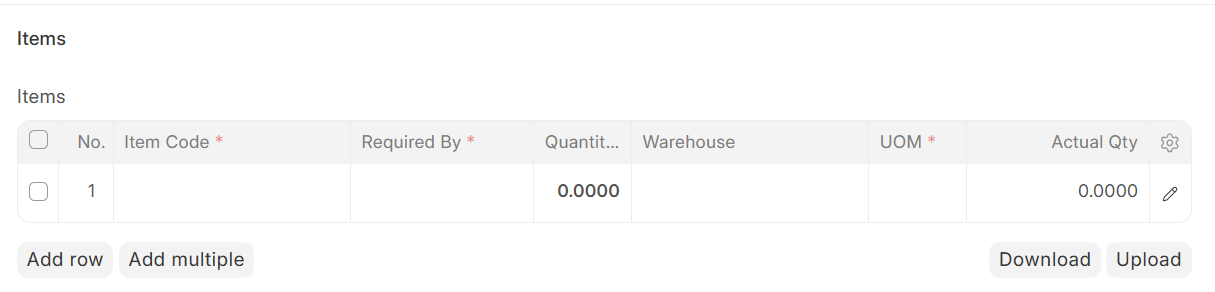
Item Code: Select item from Item Master.
Required By: Deadline for that specific item.
Quantity: Required quantity of item.
Warehouse: Warehouse from where item will be issued.
UOM (Unit of Measure): Unit in which item is requested (Nos, Kg, Meter, etc.).
Actual Qty: Shows current available stock in selected warehouse (auto).
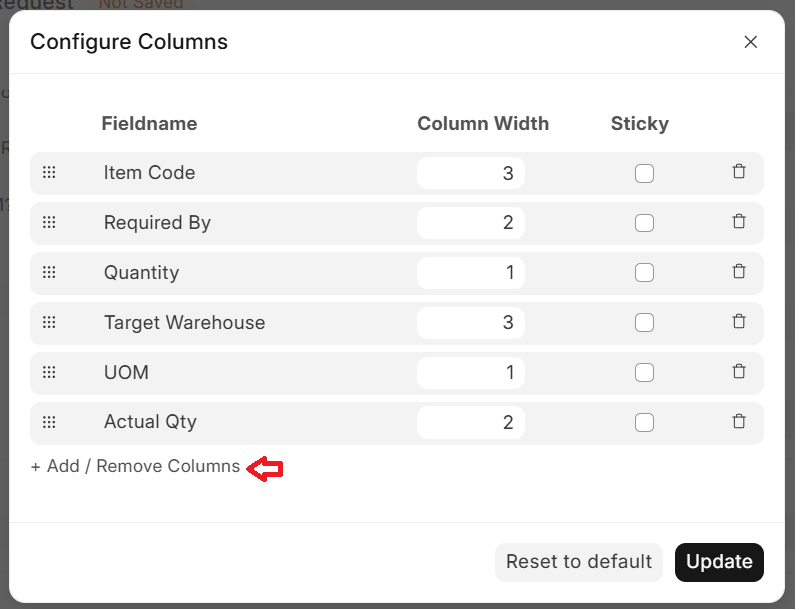
B. Additional Fields (Optional): to add more fields go to the ⚙️(gear) button then click + Add / Remove Columns
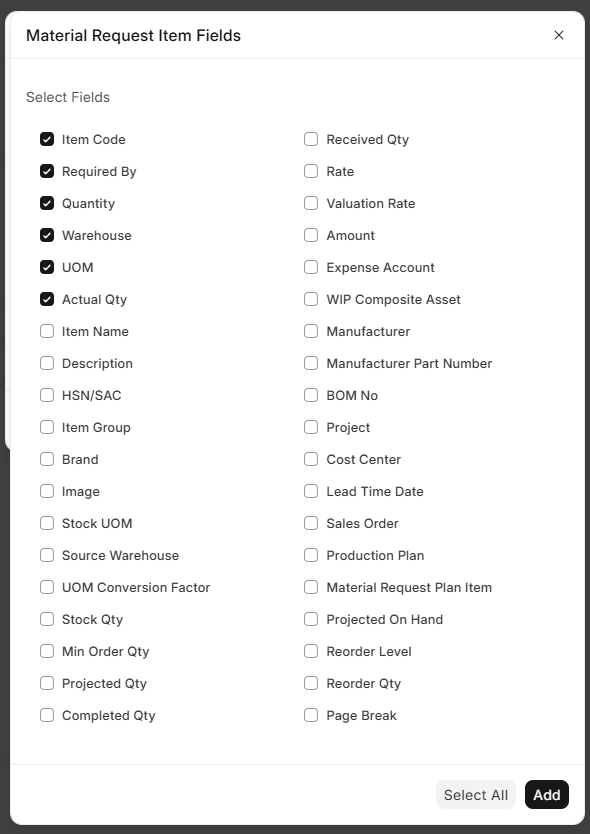
Item Name: Auto-fetched name of the item.
Description: Details about the item.
HSN/SAC: Used for taxation purposes.
Item Group: Category of item.
Brand: Brand of the item.
Image: Displays item image if available.
C. Stock & Quantity Fields
Stock UOM: Default stock unit of item.
Stock Qty: Quantity in stock unit.
UOM Conversion Factor: Conversion between UOM and Stock UOM.
Min Order Qty: Minimum order quantity defined.
Projected Qty: Expected stock after transactions.
Completed Qty: Quantity already fulfilled.
D. Warehouse & Source Details
Source Warehouse: Warehouse from where stock will be moved.
E. Pricing & Valuation
Rate: Price per unit.
Valuation Rate: Internal valuation of item.
Amount: Total cost (Qty × Rate).
F. Accounting Fields
Expense Account: Account for expense booking.
Cost Center: Department or cost unit.
G. Manufacturing Fields
BOM No: Linked Bill of Materials.
WIP Composite Asset:Used in manufacturing accounting.
Manufacturer: Item manufacturer.
Manufacturer Part Number: Part number from manufacturer.
H. Planning & Reference Fields
Project: Project linked to item.
Lead Time Date: Expected availability date.
Sales Order: Linked sales order.
Production Plan: Linked production plan.
Material Request Plan Item:Reference to planning document.
I. Stock Planning Fields
Projected On Hand: Expected available stock.
Reorder Level: Minimum stock level.
Reorder Qty: Quantity to reorder.
J. Other Fields
Received Qty: Quantity already received.
Page Break: Used for print formatting.
Button Functionalities
These buttons help users easily manage items in the table:
Add Row: Adds a single new row to enter one item.
Add Multiple: Allows adding multiple items at once using a selection window. We can select multiple item codes at once.
Download: Downloads the item table data in Excel format.
Upload: Uploads items in bulk using an Excel file.
Important:
- File format should match system template
- Incorrect format may cause errors
Row Edit (Pencil Icon ✏️): Opens detailed view of the selected row.
No comments yet. Login to start a new discussion Start a new discussion